Restoring an iPhone from a backup is the fastest way to recover your data after switching devices, fixing software issues, or resetting your phone. Apple allows you to restore your iPhone using iCloud or a computer backup (Finder or iTunes).
This guide explains how to restore iPhone from backup, common issues, and best practices to avoid data loss.
What Does Restoring an iPhone from Backup Mean?
Restoring an iPhone from a backup means transferring saved data—such as apps, photos, messages, settings, and preferences—back onto your device from a previously created backup stored in iCloud or on a computer.
This process is commonly used when:
-
Setting up a new iPhone
-
Recovering data after a factory reset
-
Fixing software or iOS issues
-
Replacing a lost or damaged device
Methods to Restore iPhone from Backup
You can restore your iPhone using two official methods:
-
Restore from iCloud Backup
-
Restore from Computer Backup (Finder or iTunes)
How to Restore iPhone from iCloud Backup


Requirements
-
Stable Wi-Fi connection
-
Apple ID used for the backup
-
iPhone reset or new device
Steps
-
Turn on your iPhone.
-
Follow the setup prompts until you reach Apps & Data.
-
Tap Restore from iCloud Backup.
-
Sign in with your Apple ID.
-
Choose the most recent backup.
-
Keep the device connected to Wi-Fi until restoration completes.
Tip: Some apps and photos continue downloading in the background after setup finishes.
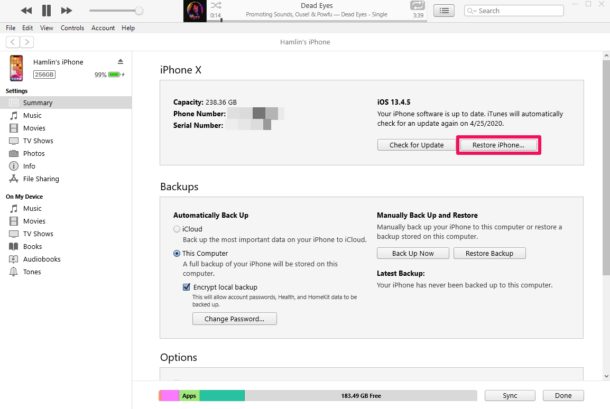
How to Restore iPhone from Computer Backup (Finder or iTunes)

Requirements
-
Mac (macOS Catalina or later) or Windows PC
-
USB cable
-
Latest version of Finder or iTunes
Steps
-
Connect your iPhone to the computer.
-
Open Finder (Mac) or iTunes (Windows or older macOS).
-
Select your iPhone when it appears.
-
Click Restore Backup.
-
Choose the backup you want to restore.
-
Enter your backup password if encrypted.
-
Wait until the process completes.
Which Backup Method Is Better?
| Feature | iCloud Backup | Computer Backup |
|---|---|---|
| Internet required | Yes | No |
| Storage limit | Limited (free plan) | Depends on computer |
| Speed | Moderate | Faster |
| Automation | Automatic | Manual |
Best practice: Use both methods regularly to ensure full data protection.
Common Issues When Restoring iPhone from Backup
-
Backup not showing: Ensure you’re logged into the correct Apple ID.
-
Stuck on restore: Restart your iPhone and check internet stability.
-
Insufficient storage: Free up space or use a computer backup.
-
iOS version mismatch: Update iOS before restoring.
Best Practices Before Restoring an iPhone
-
Fully charge your device
-
Update iOS to the latest version
-
Use a secure Wi-Fi network
-
Keep your Apple ID credentials ready
-
Back up your current data (if accessible)
FAQ: How to Restore iPhone from Backup
How long does it take to restore an iPhone from backup?
Restoration typically takes 15 minutes to 1 hour, depending on backup size and internet speed.
Can I restore an iPhone without resetting it?
No. Apple requires a factory reset or new device setup to restore from a backup.
What data is restored from an iPhone backup?
Apps, photos, messages, contacts, settings, app data, and system preferences are restored. Some media may download later.
Why can’t I see my iCloud backup?
Ensure you’re signed in with the same Apple ID and that iCloud Backup was enabled previously.
Can I restore from an old backup?
Yes, but newer data created after that backup will not be recovered.
Does restoring an iPhone delete current data?
Yes. Restoring replaces existing data with the backup contents.
Final Thoughts
Knowing how to restore iPhone from backup ensures you never lose important data when upgrading or troubleshooting your device. Whether you choose iCloud or a computer backup, following the correct steps guarantees a smooth and secure restoration process.